
The complete walkthrough
From a YouTube link to a saved file.
Your first download, explained one step at a time. Learn how to save a video, a Short, or just the audio with Y2Mate in your browser.
Start a download-
Copy the link to one video or Short
Start with the individual video you want to save. Make sure you can open it on YouTube before copying its link.
- On a computer: open the video on YouTube, select its address in the browser address bar, and copy it with Ctrl+C on Windows or Command+C on Mac. You can also use Share, then Copy link.
- On a phone: open the video in the YouTube app or your browser, tap Share, then Copy link.
- For a Short: open the Short itself and use Share, then Copy link. A youtube.com/shorts/ link works too.
Supported link examples
https://www.youtube.com/watch?v=VIDEO_IDhttps://youtu.be/VIDEO_IDhttps://www.youtube.com/shorts/VIDEO_ID
VIDEO_ID stands for the video’s 11-character ID. Paste a real video link, not these examples. Playlist links, links containing a list parameter, and /live/ links are not supported. If you copied a link from a playlist, open the individual video outside the playlist and copy its link again.
-
Paste your link and load the download options
Open the Y2Mate home page and use the field labeled “YouTube video or Shorts link”.
- Click or tap the input field. Press Ctrl+V on Windows or Command+V on Mac; on a phone, touch and hold the field and choose Paste.
- When the field is empty, you can also use its clipboard button. Allow clipboard access if your browser asks. If access is unavailable, paste manually.
- A valid link automatically loads the download options below the field. You can also click Download to load them. Loading options does not yet save a file.
- To use another link, select the text and replace it, or click the clear button that appears once the field contains text.
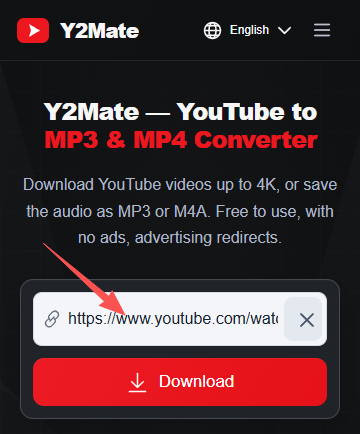
If a validation message appears, check the link before continuing. Wait for the options to load and check that they belong to the video you intended to download.
-
Choose your format and quality
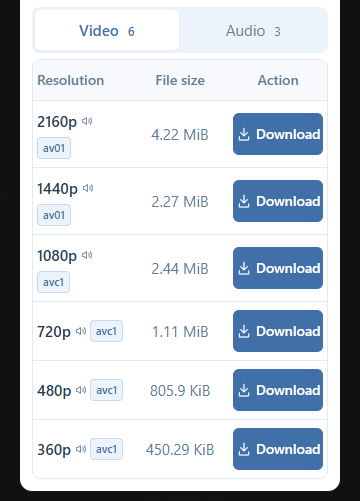
Decide whether you need the full video or just its sound, then choose one of the available resolutions or bitrates.
- Choose MP4 when you want to watch the picture and hear the audio. Higher resolutions generally need more storage and take longer to transfer.
- Choose M4A or MP3 when you only need audio. Compare the options below, then use the download control for your chosen option.
Which format should you choose? Format Best for Compatibility & storage MP4 video Watching the video with sound Widely supported, though playback depends on the device and codec. Higher resolutions generally create larger files. M4A audio Audio without MP3 conversion Supported by many modern players; check your device. File size depends on the source audio bitrate and duration. MP3 · 128 kbps Everyday listening with less storage Broad player support. Smaller than 320 kbps MP3 for the same duration. MP3 · 320 kbps A higher-bitrate MP3 option Broad player support. Larger than 128 kbps MP3; quality still depends on the original audio. Available formats and resolutions depend on the source and the download service. 1080p, 1440p and 2160p (4K) may appear when available; they are not guaranteed. A higher audio bitrate cannot restore detail missing from the original recording.
-
Let the file finish preparing
Some options are ready quickly; others need server processing before they can be saved.
- Higher-resolution video may have separate picture and sound streams. These need to be combined into one file.
- MP3 needs audio conversion. M4A can use the source audio without MP3 re-encoding, so it may be ready sooner.
- Keep the page open while preparation runs and follow the status shown in the download panel. When the file is ready, use the final download control if one is shown.
Preparing a file and transferring it to your device are separate stages. Preparation time and transfer speed vary with the video, your connection and server load. Avoid repeatedly starting the same request while it is still processing.
-
Save the file and find it on your device
When your browser starts the download, keep an eye on its Downloads list. If it asks where to save the file, choose a folder you can find again.
- On a computer: open your browser’s Downloads list to check progress. When it finishes, open the file or use Show in folder (or the equivalent option). Your Downloads folder is a common default, but your browser settings decide the location.
- On Android: check the browser’s Downloads list. You can usually also find the saved file in your file manager under Downloads; the exact location depends on your browser and device settings.
- On iPhone or iPad: in Safari, check the Downloads list, then open the Files app and look for Downloads under iCloud Drive or On My iPhone / iPad, depending on your download settings. Other browsers may use their own download controls.
- Wait until the transfer is complete before opening the file. Saving a file does not automatically add it to your Photos or music library.
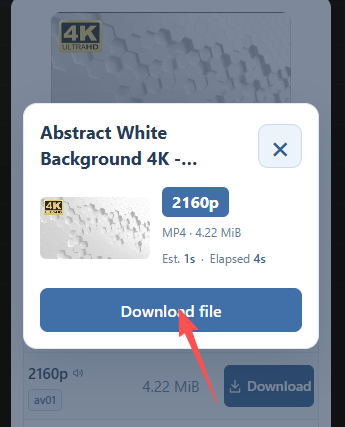
If the file opens in a player instead of saving, look for a download or save option in that player or the browser’s menu. The available controls depend on your browser.
Need a hand with your download?
Work through these checks if a step does not go as expected.
Why is my link being rejected?
Paste a direct YouTube video, youtu.be share link, or Shorts link. Channel, search, playlist and /live/ links are not supported. Links with a list parameter are also rejected, even if they include a video ID. Open the video outside the playlist and copy its individual link.
What if the clipboard button does not work?
Clipboard access can be unavailable or denied by your browser. Click the input and paste with Ctrl+V, Command+V, or your phone’s Paste menu. Copy the link again if your clipboard is empty.
Why are the download options not loading?
First check for a validation message below the input. If the link is valid, check your connection and try Download again. If the panel remains blank, refresh the page and paste the link again. A browser extension may block the embedded panel; review its site permissions if needed. The download service may also be temporarily unavailable.
Why is there no 4K option?
The source video may not have 4K, or the service may not currently offer that resolution for this video. Choose an available option. Selecting a higher bitrate or changing the file format cannot create genuine 4K detail.
What should I do if file preparation fails?
Read the message in the download panel and check that the original video is still accessible on YouTube. Check your connection, then retry once the failed request has ended. You can try another available format or a lower resolution. If failures continue, try again later; private, removed or restricted videos may not be available.
Where is my downloaded file?
Check your browser’s Downloads list first. A file still preparing in the download panel has not yet been saved to your device. If the browser reports a completed download, use its open or show-in-folder control, or look in the download location set in your browser. On iPhone or iPad, also check the Files app rather than only Photos.
Ready to try it?
Copy a video or Shorts link, return to Y2Mate, and choose the file that fits your needs.
Start a download